 Angryturtle
How to Set Up GBP for a New Branch
Onboarding a new location correctly at launch instead of cleaning it up later.
Cleaning up a Google Business Profile after two years of drift takes longer than setting one up correctly on day one. A new branch that launches with the wrong category, a NAP that doesn't match the master file, and a listing nobody checked for a pre-existing duplicate is exactly how that two-year mess gets started. The fix is doing the setup in the right order once, before the branch manager starts making small edits on their own.
This playbook walks through onboarding a new location, from locking the address format before you touch Google to getting the profile actively posting from week one.
Step 1 — Lock the NAP before you create anything
Before opening Google Business Profile, decide the exact name, address, and phone number format for this branch and write it down. Match the parent brand's naming convention exactly, if your flagship location is listed as "Meherwan Dental Care" without "Pvt Ltd," the new branch should be too. Pick one address format, "Shop 4" versus "Shop No. 4," "Rd" versus "Road," and commit to it before it goes anywhere.
This master record becomes the source every other platform gets copied from, the Google listing, the website's contact page and any location-specific page, and eventually the directory citations. If you already run more than one branch, add this new one to the same file covered in NAP consistency across multiple locations rather than starting a separate tracking sheet just for this launch, and worth reading alongside multi-location SEO if this is one of several branches opening on a schedule rather than a one-off.
Step 2 — Check for an existing or auto-generated listing first
Search the new address and business name on Google Maps before creating anything. Google auto-generates listings from map data, delivery app integrations, and third-party directory syncs constantly, and a location that hasn't officially opened yet sometimes already has a placeholder pin sitting there, created by a data aggregator, a previous tenant's leftover listing, or even a customer who dropped a pin manually.
If something already exists, claim that listing rather than creating a second one. Creating a fresh profile when an unclaimed one already sits at the same address is one of the more common ways a brand-new branch ends up with a duplicate before it's even had a single customer, the exact problem covered in merging duplicate Google listings, except here you can avoid it entirely by checking first.
Step 3 — Create and verify the new listing
If nothing exists, create the listing at business.google.com using the exact NAP from the master file, not a version typed from memory. Use a work email tied to the business, not a personal account someone might lose access to later, since ownership disputes over a personal login are a recurring headache for franchises and multi-branch brands.
Google will offer a verification method based on the category, country, and account history, sometimes video, sometimes a postcard, occasionally phone or email if the account already has trust built up from other verified locations. Our guide on claiming and verifying a Google Business Profile covers what each method involves and what to do if verification stalls. Don't skip straight to editing the profile heavily before verification clears, heavy pre-verification edits are one of the patterns that can slow the review down.
Step 4 — Set category and service details to match this branch, not the flagship
Copy-pasting the flagship location's category and description onto a new branch is a common shortcut and a mistake if the branch genuinely differs. A clinic opening its second location with a smaller specialty mix than the original shouldn't inherit categories for services it doesn't actually offer at that address, our guide on choosing a GBP category covers how to verify the category is actually right rather than just copied.
The same applies to service areas if the branch is a service-area business covering a different radius than the original location. And the description should name this branch's specific neighborhood, not a generic paragraph identical to every other location's profile, write it fresh using the approach in writing a GBP business description rather than duplicating the flagship's text.
Step 5 — Get the branch photographed and posted from day one
A brand-new listing with zero photos and no post history looks unfinished, and it stays that way until someone remembers to fix it, usually months later. Upload real photos of the actual location, exterior signage, interior, staff if appropriate, before the branch's soft-open, not after the first complaint about a missing storefront image.
Set a posting cadence from week one rather than treating Posts as an afterthought once the branch is established. A profile that shows activity from the start reads as a real, operating business faster than one that sits quiet for its first two months and then suddenly starts posting.
Step 6 — Add it to the master file and portfolio tracking
Once the listing is live and verified, log it into whatever system tracks your other locations, the master NAP file, the citation tracker, whatever spreadsheet or platform the rest of the portfolio already runs through. A branch that gets set up correctly but never added to the ongoing tracking system is the one that drifts first, since nobody's watching for its next hours change or its next stray citation.
If the brand is opening branches regularly, this step is worth turning into an actual checklist rather than repeating from memory each time, the same discipline covered in managing multiple Google Business Profiles once a portfolio grows past a handful of locations.
How Angryturtle helps
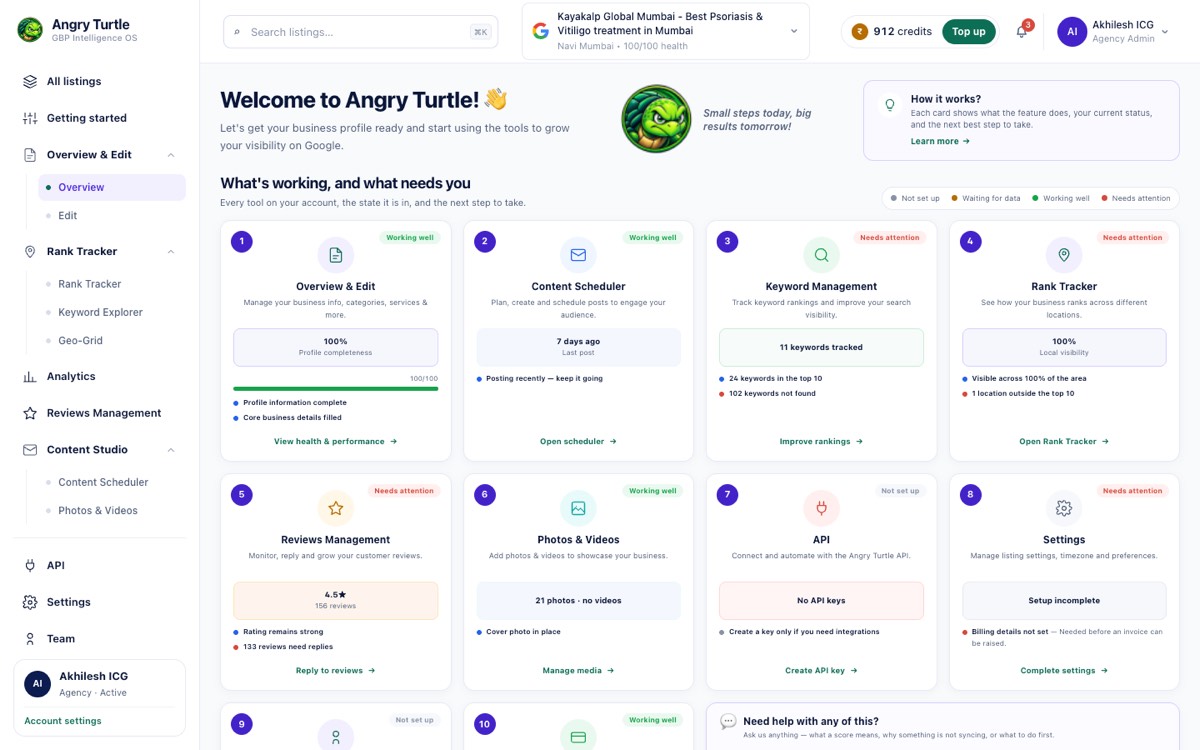
Setting up one branch correctly by hand is manageable. Doing it consistently across the fifth, tenth, and twentieth branch, without small deviations creeping in, is where most brands lose the discipline. Rank OS scores a new listing the moment it's verified, so gaps show up immediately rather than three months into operation. Edit-to-Google applies the category, description, and service-area setup directly and pushes it live, using the same master data across every branch instead of retyping it per location.
Agency OS is built for exactly this kind of rollout, one team standing up several branches on a schedule, with per-location scoring and bulk operations that keep the setup consistent without flattening what should actually differ between locations. Brands opening branches at a pace that outstrips internal bandwidth can hand the whole onboarding sequence to Angryturtle's GBP management service, from claim through the first month of posting.
FAQ
Should a new branch use the same Google account as the flagship location? It depends on how the brand manages access. Chains that keep every location under one owning account with location-level permissions find this easier to audit, but the account should be a shared work account the business controls, not any single person's personal login.
How soon after opening should the GBP listing go live? As soon as the address and phone number are final and the location can actually receive customers or deliveries at that address. Creating the listing too early, before the space is staffed, risks a verification mismatch if Google's video or postcard check happens before the branch is genuinely operating there.
Can a new branch reuse the flagship's reviews? No. Reviews are tied to the individual listing, not the brand as a whole. A new branch starts with zero reviews regardless of how established the rest of the chain is, which is normal and not a sign anything's wrong with the setup.
What if the new branch's address already shows an old, unrelated business on Google Maps? That's usually a stale listing from a previous tenant that was never closed. Report it as permanently closed or moved through Google's suggest-an-edit tool before creating the new listing, rather than creating a competing profile at the same pin.
Does opening a new branch affect the ranking of existing locations? Not directly, but overlapping service areas or near-identical descriptions across close branches can cause the listings to compete with each other in search rather than against outside competitors, worth checking as part of the setup covered in setting up GBP service areas.
More how-to playbooks
A score you can argue with, not a black box
Rank OS gives every profile a 0–100 score built from five weighted dimensions — Relevance, Review Health, Freshness, Entity Authority and AIO Readiness — and the weights are tunable. Underneath it sits a ranked list of the fixes that move the number, each with the point lift it unlocks.
Ready to have this run for you?
Book a free audit — we'll show you where you stand in 48 hours.